

Table of Contents
Smart home technology makes everyday living more convenient — from turning off lights with your voice to adjusting your thermostat from your smartphone.
But setting up smart home devices can feel overwhelming if you’ve never done it before.
At Victra, the largest Verizon Authorized Retailer with over 1,500 stores nationwide, we help customers connect smartphones, Wi-Fi routers, and smart home devices every day. In this beginner-friendly guide, you’ll learn:
• What smart home devices are
• How Alexa and Google Assistant work
• How to set up smart devices step by step
• How to troubleshoot common issues
• How to optimize your home network for smart devices
Let’s make smart home setup simple.
What Is a Smart Home? (Featured Snippet Definition)
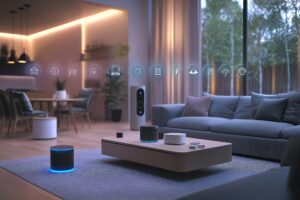
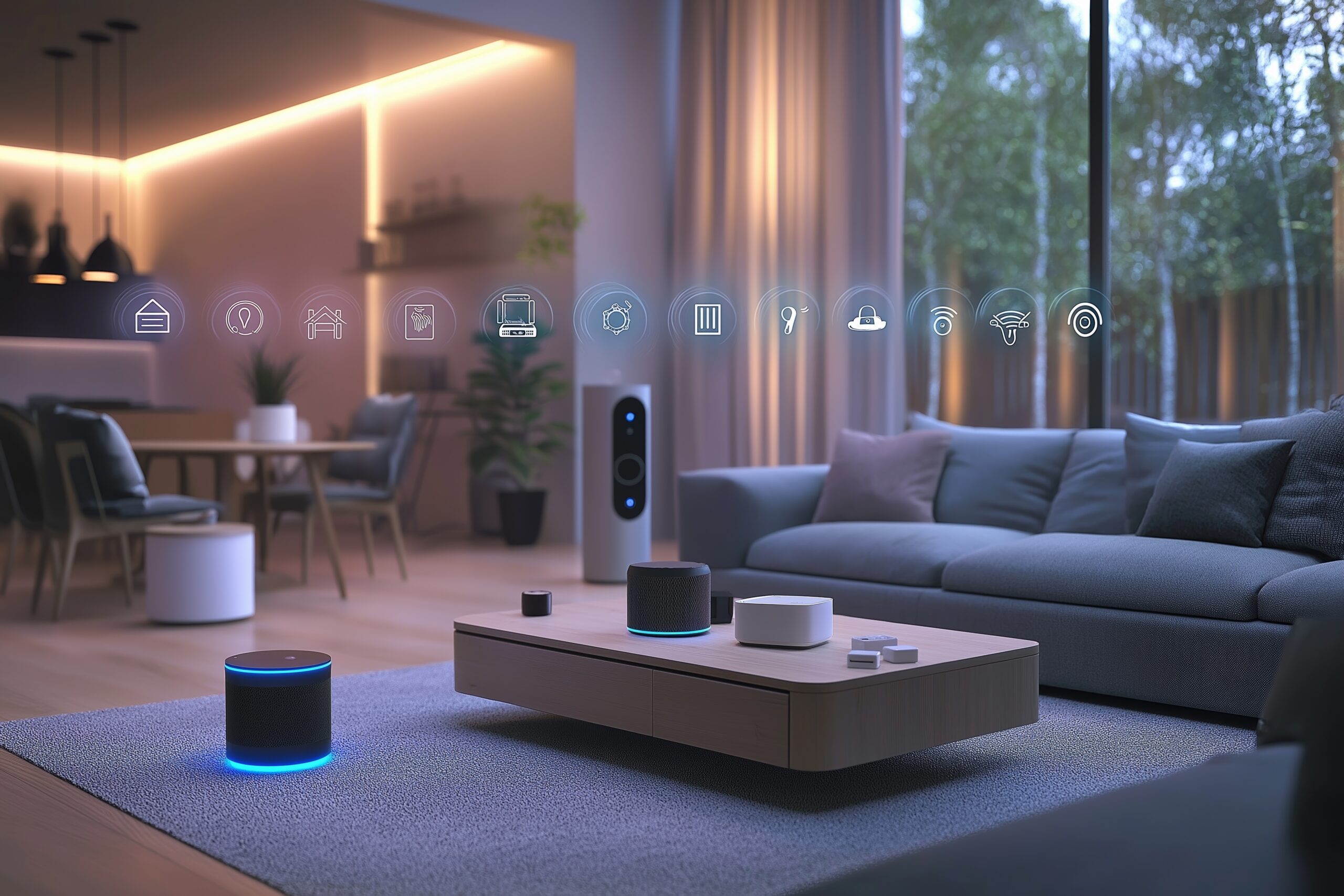
A smart home uses internet-connected devices that can be controlled remotely through a smartphone app or voice assistant.
Smart home devices connect to your Wi-Fi network and allow you to control them using:
• Voice commands
• Mobile apps
• Automation routines
What Is Alexa or Google Assistant? (Featured Snippet Definition)
Alexa and Google Assistant are voice-controlled digital assistants that let you control smart devices, search the internet, and automate tasks using voice commands.
They work through devices like:
• Amazon Echo speakers
• Google Nest speakers
• Smartphones
• Smart displays
What Devices Can You Connect?
Common smart home devices include:
| Device Type | What It Controls |
| Smart Bulbs | Lighting brightness and color |
| Smart Plugs | Power on/off for appliances |
| Smart Thermostats | Home temperature control |
| Smart Locks | Door locking and unlocking |
| Smart Cameras | Home monitoring |
| Smart Doorbells | Video and notifications |
All of these devices connect through your Wi-Fi router.
(For help optimizing Wi-Fi, see: How Routers Work and How to Set One Up the Right Way — Blog #6.)
What You Need Before You Start
Before setting up smart home devices, make sure you have:
• A stable Wi-Fi connection
• A compatible smartphone
• The device’s companion app is installed
• An Amazon or Google account
• Your Wi-Fi network name and password
Strong, reliable Wi-Fi is critical for performance.
How to Set Up Smart Home Devices with Alexa (Step-by-Step)
Step 1: Plug in and Power On the Device
Follow the manufacturer’s instructions to power the device.
Step 2: Download the Device App
Install the manufacturer’s app (for example, a smart bulb app).
Step 3: Connect the Device to Wi-Fi
Use the app to connect the device to your home Wi-Fi network.
Step 4: Open the Alexa App
Go to “Devices” and tap “Add Device.”
Step 5: Enable the Device Skill
Search for the device brand and enable its Alexa Skill.
Step 6: Discover Devices
Alexa will scan and automatically detect the device.
Step 7: Test with a Voice Command
Say:
“Alexa, turn on the living room light.”
How to Set Up Smart Home Devices with Google Assistant
Step 1: Install the Google Home App
Download the Google Home app from your app store.
Step 2: Tap “Add” → “Set Up Device”
Choose “Works with Google.”
Step 3: Link Your Device Account
Select your device brand and log in.
Step 4: Assign a Room
Place the device in a virtual room for easier voice control.
Step 5: Test a Command
Say:
“Hey Google, turn off the kitchen lights.”
How Do Smart Home Devices Communicate?
Smart home devices use:
• Wi-Fi
• Bluetooth
• Cloud servers
Here’s how it works:
- You give a voice command.
- The assistant sends the request to the cloud servers.
- The server communicates with your device.
- The device performs the action.
All of this happens in seconds.
How to Create Smart Home Routines (Automation)
Both Alexa and Google Assistant allow automation routines.
Examples:
• “Good Morning” turns on the lights and reads the weather.
• “Good Night” turns off lights and locks doors.
• Schedule lights to turn on at sunset.
Automation makes your home more efficient and convenient.
What Causes Smart Devices to Disconnect?
Common causes include:
• Weak Wi-Fi signal
• Router placement issues
• Network congestion
• Power interruptions
• Outdated firmware
If devices disconnect frequently:
• Restart your router
• Move devices closer to the router
• Update device software
2.4 GHz vs 5 GHz for Smart Devices
Many smart home devices operate best on 2.4 GHz Wi-Fi.
Wi-Fi Band Best For
| 2.4 GHz | Longer range, smart devices |
| 5 GHz | Faster speeds, streaming |
If your device won’t connect, check that your router supports 2.4 GHz.
Is Smart Home Technology Secure?
Smart home devices use encryption to protect communication.
Best practices:
• Use strong Wi-Fi passwords
• Enable two-factor authentication
• Keep devices updated
• Remove unused devices
Verizon invests heavily in network security to help protect connected homes.
Why Smart Home Setup Matters
When set up properly, smart home devices can:
• Save energy
• Improve security
• Increase convenience
• Enhance entertainment experiences
Understanding how your Wi-Fi, router, and connected devices work together helps ensure everything runs smoothly.
This article is part of Victra Teaches Tech, designed to make technology simple and approachable for everyone.
Read More : How mobile data works
Frequently Asked Questions About Smart Home Setup
A smart home device is an internet-connected product that can be controlled through a smartphone app or voice assistant.
Yes. Most smart home devices require a stable Wi-Fi connection to function properly.
Use the Alexa app, enable the device’s skill, and select “Add Device” to discover and connect it.
Open the Google Home app, choose “Works with Google,” and link your device account.
Common reasons include weak signal strength, incorrect Wi-Fi password, or the device only supporting 2.4 GHz networks.
Yes, when properly configured. Use strong passwords and keep firmware updated.
Yes. Most smart home devices allow remote control through cloud-connected apps.