

Table of Contents
Whether you’re traveling abroad, supporting a multilingual team, or texting family overseas, translation has shifted from “nice to have” to everyday necessity. The challenge is not finding an app—it’s choosing the right one for how you actually live and work.
The “best” translation app isn’t the same for everyone. It depends on your device, which languages you use, how often you’re offline, how sensitive your content is, and whether you’re translating on the go or at a desk. This guide walks through the leading options, clarifies trade-offs, and helps you choose a solution that works seamlessly with your smartphone and data plan.
How to define “best” in a translation app
Before naming specific apps, it helps to be explicit about what “best” should mean. If you only look at star ratings in an app store, you’ll miss important details that matter in real-world use.
Here are the core criteria that tend to define the top translation apps today:
- Language coverage and depth
- Number of supported languages and dialects
- Quality of translation for major vs. less-common languages
- Support for regional variants (e.g., Latin American vs. European Spanish)
- Translation modes
- Text input (typing or copy/paste)
- Voice and conversation mode (two-way interpretation)
- Camera translation (menus, signs, documents)
- Handwriting or character recognition for languages like Chinese or Japanese
- Accuracy and naturalness
- How well the app handles everyday speech, slang, and idioms
- Whether translations are understandable in real conversations, not just grammatically correct
- Continuous updates and model improvements
- Offline capability
- Which languages work without an internet connection
- Size of offline language packs and impact on storage
- How much accuracy drops when offline
- Speed and ease of use
- How quickly translations appear on typical 4G or 5G connections
- Interface clarity, large buttons for on-the-go use, and minimal taps to change languages
- Integration with your smartphone’s OS (sharing text, quick actions, etc.)
- Privacy and data handling
- Whether voice and text are stored or used for training
- Options to opt out of data collection
- Local vs. cloud processing where available
- Ecosystem integration
- How well the app works with your platform (Android, iOS, wearables, smart displays)
- Connection with productivity apps, browsers, and messaging tools
When you evaluate the leading translation apps against these criteria, different strengths emerge. Instead of assuming there is one ultimate winner, it’s more accurate to say that some apps are best for travel, others for daily messaging, and some for business and education.
Google Translate: Best all-around option for most users
For most smartphone users—especially on Android—Google Translate remains the most versatile, everyday solution. Its combination of language support, feature set, and integration is hard to match.
Key strengths of Google Translate
- Extensive language coverage
Google Translate supports over 130 languages, with varying degrees of depth. Major languages like Spanish, French, Portuguese, Chinese, Japanese, and Arabic tend to receive the most frequent quality updates. - Rich translation modes
- Text: Type, paste, or write using handwriting input.
- Voice: Speak into your phone and see/hear translations.
- Conversation mode: Automatically listens and switches between two languages, which is useful at restaurants, taxis, or front desks.
- Camera translation: Point your camera at menus, street signs, or printed documents and get instant overlay translations.
- Photos: Import images from your gallery for translation after the fact.
- Offline functionality
You can download language packs for offline use, which is especially useful when traveling with limited roaming. Accuracy is usually a bit lower offline than online, but for menus, directions, and simple conversations it is often sufficient. - Platform integration
On Android, Google Translate works tightly with the operating system:- “Tap to Translate” can overlay the app on top of messaging apps.
- System-level sharing makes it easy to send text directly to Translate.
- Integration with Chrome helps translate web pages seamlessly.
On iOS, the standalone app still offers a solid experience, though system integration isn’t as deep as on Android.
- Continuous improvements
Google regularly updates its underlying models, improving fluency and contextual understanding. In recent years, translations have become more natural and less word-for-word.
When Google Translate might fall short
- High-stakes professional translations
For contracts, medical records, or regulatory content, human translators or specialized tools are still recommended. Machine translation can introduce nuance errors you can’t afford in legal or medical contexts. - Subtle dialect differences
While Google Translate has improved with regional variations, it may not always capture local expressions or culturally specific references precisely. - Privacy-sensitive content
Although you can adjust some privacy settings and make use of offline mode, highly confidential materials may be better handled with enterprise-grade tools or offline-only solutions.
For general travel, everyday communication, and quick understanding of text across languages, Google Translate is typically the most practical starting point, especially if you’re already using Google apps on your smartphone.
DeepL, Microsoft, and Apple: When your priorities differ
If your priorities center on specific platforms, document-quality translations, or tight integration with particular tools, other major players can be a better fit—or a useful complement to Google Translate.
DeepL: Strong for written text and documents
DeepL is often favored for its translation quality on European languages, especially when converting longer, written content.
Where DeepL stands out:
- More natural phrasing for some language pairs
Many users and reviewers find DeepL’s translations feel more like they were written by a human, particularly between English, German, French, Spanish, Italian, Dutch, and a set of other supported languages. - Document translation
DeepL can translate full documents (such as Word and PowerPoint files) while preserving formatting. This can be valuable in a professional context. - Tone control (in some versions)
Certain DeepL tiers allow for more control over formality, which helps when drafting emails or customer-facing content in other languages.
Limitations to consider:
- Mobile experience and coverage
DeepL’s mobile apps exist, but language coverage is narrower than Google Translate, especially for less-common languages and some Asian or African languages. - Less focus on travel scenarios
DeepL is optimized for written text and documents, not spontaneous two-way conversation, camera translation of signs, or quick offline use during travel.
DeepL can be a powerful second tool if you frequently translate longer documents and care about refined written style.
Microsoft Translator: Great for cross-platform and business use
Microsoft Translator integrates well into the broader Microsoft ecosystem, which can be particularly beneficial if you use Windows, Office, or Teams.
Key strengths:
- Conversation and meeting support
Microsoft Translator offers multi-device conversation features. Multiple people can join a translated conversation on their devices, which can help during business meetings or classrooms. - Office and Teams integration
You can translate text directly in apps such as Word, PowerPoint, and Outlook, and enable real-time captioning and translation in Teams meetings. - Cross-platform availability
Available on iOS, Android, web, and as extensions or add-ins, making it useful when you work across different devices.
Potential trade-offs:
- Fewer consumer-focused conveniences
While it does support text, voice, and image translation, the interface and feature set feel more skewed toward productivity than casual travel. - Language quality varies
Quality is competitive for many widely used languages, but as with all machine translation services, performance depends on the language pair and context.
If your day-to-day involves Microsoft 365, Teams, and Windows, Microsoft Translator can be a logical choice alongside your mobile translation app.
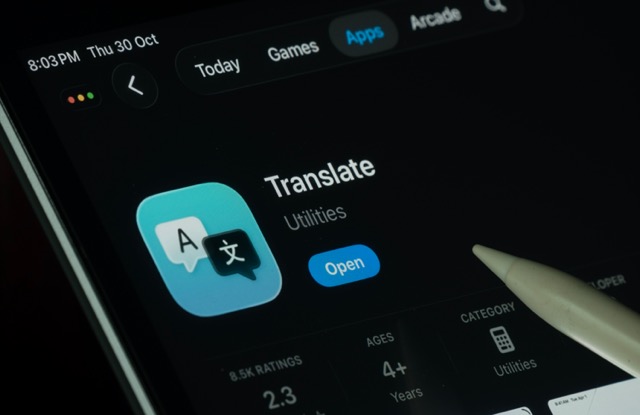
Apple’s Translate app: Best fit for iPhone-first users
For iPhone users, the built-in Translate app from Apple offers a streamlined, privacy-conscious option.
Why some iOS users prefer Apple Translate:
- Native integration
- Available directly in supported versions of iOS and iPadOS.
- Accessible through system features like Safari’s page translation, Siri, and system-wide translation of selected text in many apps.
- On-device processing in some cases
For certain languages and scenarios, translations can be processed on-device, which can reduce data usage and improve privacy. - Clean, focused interface
Apple’s design emphasizes a simple conversational view, with large text and clear buttons—useful when handing your phone back and forth in person.
What to be aware of:
- Language coverage is narrower than Google Translate
While Apple continues to add more languages, coverage is not yet at the same scale as Google’s offering. - Fewer advanced modes
Apple Translate supports text, voice, conversation, and some camera translation capabilities, but lacks some of the niche features and depth found in more mature translation apps.
For iPhone users who value privacy and ecosystem integration and primarily work with major languages, Apple’s app can provide a smooth, built-in option.
Specialized uses: Travel, business, and accessibility
The best translation app for you depends heavily on what you’re trying to do. It’s useful to think in terms of scenarios rather than just brand names.
Best for international travel and roaming
When you’re on the move, you care about:
- Fast access to camera translation for signs and menus
- Simple two-way conversation features
- Reliable performance on cellular networks, including roaming
- Offline language packs to avoid unexpected data use
Practical recommendations:
- Primary app for most travelers:
- Google Translate for its strong offline packs, camera translation, and broad language coverage.
- Backup or secondary choices:
- Apple Translate if you’re on iPhone and mainly traveling where supported languages are spoken.
- A phrasebook-style app in your target language for critical phrases, stored offline.
If you travel frequently, pairing a strong translation app with a robust 4G or 5G data plan can make a notable difference. Features like live camera translation, cloud-based voice recognition, and map integration all work more smoothly when your connection is both fast and consistent.
Best for business, education, and remote collaboration
In professional contexts, the emphasis shifts to:
- Accuracy and clarity in written communications
- Integration with collaboration tools
- Support for meetings, lectures, or large-group conversations
- Handling of documents and presentations
Practical recommendations:
- For Office-based workflows:
- Use Microsoft Translator alongside Word, PowerPoint, Outlook, and Teams to translate emails, slides, and captions.
- For document-heavy workflows:
- Use DeepL for longer-form written text and documents when supported languages match your needs.
- For live, ad hoc conversations:
- Keep Google Translate or Microsoft Translator on your phone for quick in-person exchanges.
In high-risk fields such as law, finance, or healthcare, any automated translation should be treated as a first draft or comprehension tool, not a final, authoritative version. Human review remains essential for critical materials.
Best for accessibility and everyday communication
Translation apps can also support accessibility and communication for:
- Multilingual families and friend groups
- Community organizations and public services
- Individuals learning new languages or building vocabulary
Helpful use cases:
- Family and social communication:
- Use conversation mode in Google Translate or Apple Translate when speaking with relatives who prefer another language.
- Community and education:
- Enable captioning and translation in Microsoft Teams for remote classes or meetings with multilingual participants.
- Language learning:
- Pair an app like Google Translate with language-learning tools to clarify words and phrases quickly while studying.
Here, user experience and ease of access often matter more than advanced controls. A clear interface with large fonts, audible playback, and fast response can make translation apps more usable day to day.
How to choose the best translation app for your needs
Bringing all of this together, the most effective way to decide is to match specific features to your daily scenarios rather than aiming for a single universal solution.
1. Start with your primary device
- Android users:
- Google Translate is usually the most seamless option thanks to integration with the OS, Chrome, and many Google services.
- iPhone and iPad users:
- Apple’s Translate app pairs well with Safari and Siri, while Google Translate remains valuable for its broader language support.
2. Identify your top two use cases
Ask yourself:
- Are you mostly traveling and need menu, sign, and quick conversation help?
- Are you working or studying and translating documents, slides, or emails?
- Are you chatting socially with friends and family who use another language?
Match your answers:
- Travel-focused: Emphasize offline packs, camera translation, and voice conversation.
- Work and study: Emphasize document translation, Teams or Office integration, and higher-quality written output.
- Social use: Emphasize ease of switching between languages and copying text into messaging apps.
3. Consider offline needs and data usage
If you often find yourself without Wi-Fi or traveling internationally:
- Download offline language packs whenever possible in your primary app.
- Test a few translations in airplane mode before you travel to understand the app’s offline limits.
- If you rely on real-time voice or camera translation, ensure your mobile plan offers reliable coverage and a data allowance that fits your usage.
4. Pay attention to privacy preferences
If you handle sensitive information or simply prefer a more private setup:
- Review each app’s privacy controls and data-handling policies.
- Favor on-device processing when available (some features in Apple Translate and specific offline modes in other apps).
- Use translation as a comprehension tool rather than pasting confidential documents into consumer apps.
Key takeaways for choosing your translation companion
When you ask, “What is the best app for translation?” the most honest answer is: it depends on how and where you communicate. For many smartphone users, Google Translate provides the strongest all-around balance of language support, features, and integration, especially on Android.
If you live in the Apple ecosystem, Apple’s Translate app is a natural choice for many everyday needs, while Microsoft Translator and DeepL add value in work, education, and document-centric scenarios.
The most effective strategy is often to rely on one primary translation app that matches your device and everyday use, and keep a secondary tool available for specialized tasks such as document translation or professional collaboration. With the right combination in place—and a dependable mobile data connection—you can move through multilingual conversations, trips, and projects with much more confidence.

is a skilled Web Developer and Designer. He builds and designs websites that focus on best UI/UX practices. Justin is also a Verizon Product Expert at Victra, helping customers with Verizon products and services. His mix of design, coding, product, and general knowledge makes him a valuable and knowledgeable team member.